
Watched the IT video and finished Okta setup?
Connect to Wi-Fi
Scan the QR code on arrival
A QR code with Wi-Fi connection instructions will be posted on-site. Scan it and make sure you connect to the correct summer class network.
Sign In to Okta
Open Google Chrome and navigate to the Okta portal
matthews.okta.com
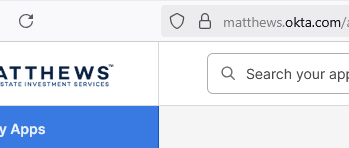
Log in with your Matthews credentials
Use your Matthews-provided email in the format FirstName.LastName@matthews.com and your temporary password:
T3mpLog!n1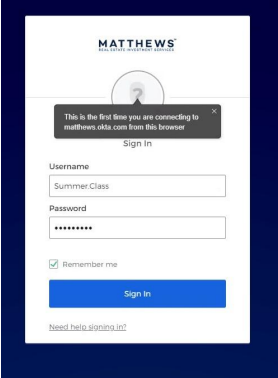
Reset your password
You'll be prompted to create a new password. It must be 10 characters or more.
Set Up Multifactor Authentication
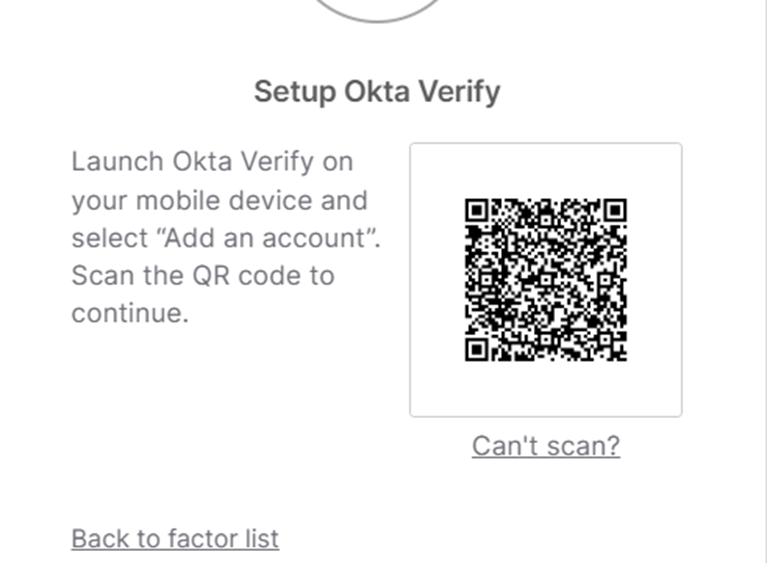
Choose Okta Verify
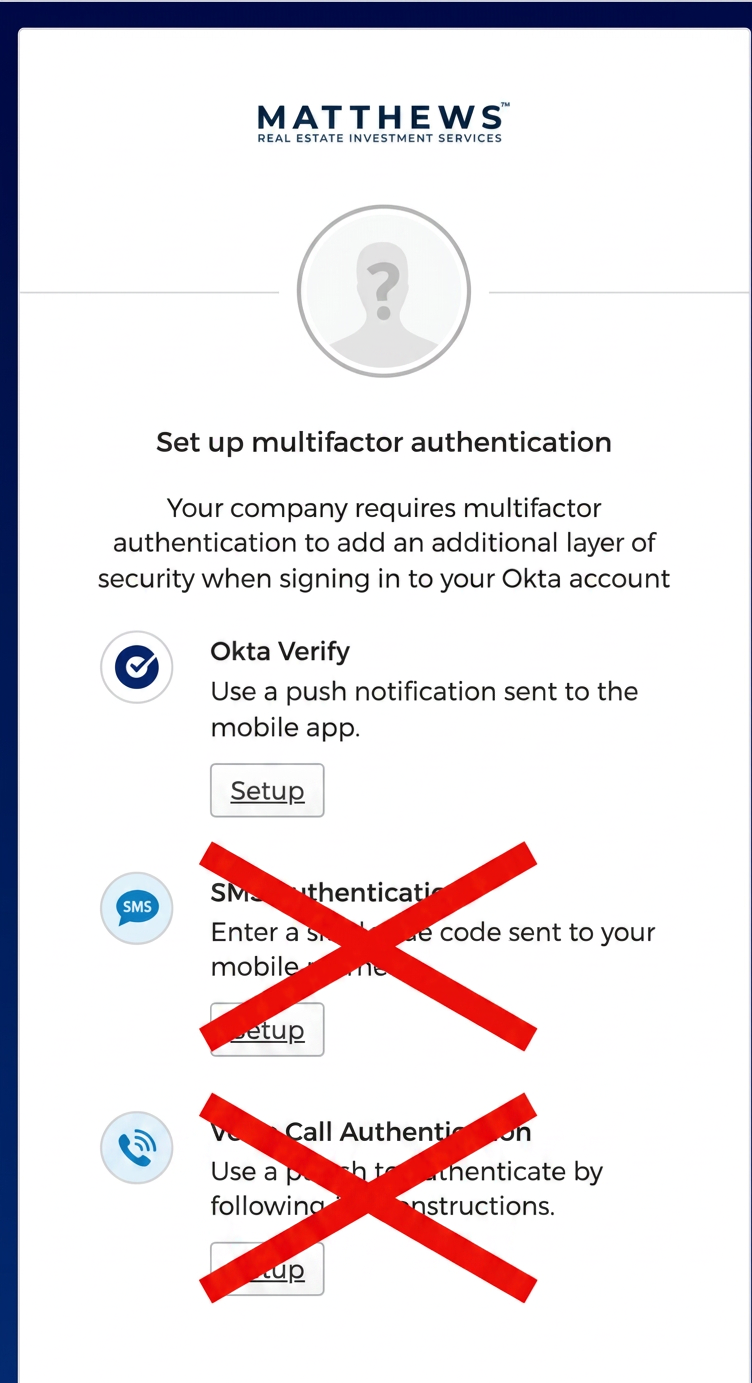
Use Okta Verify
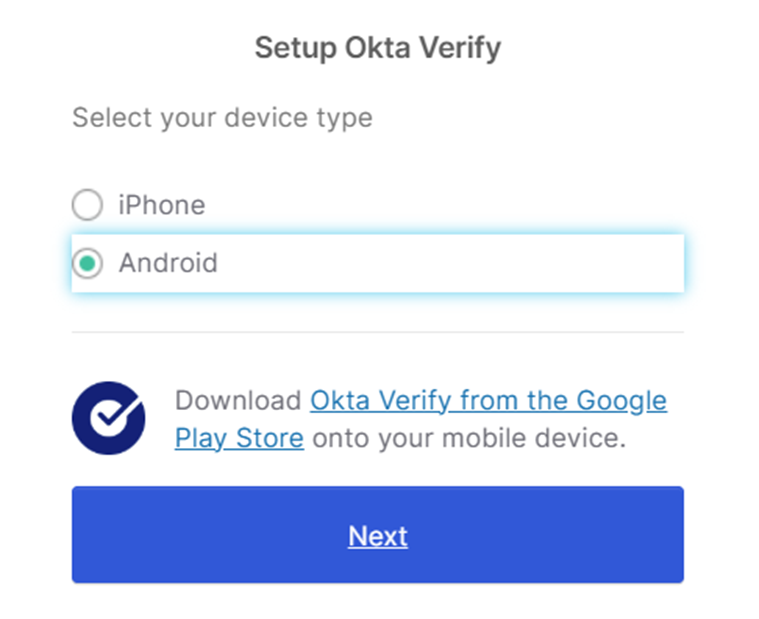
- Select your phone type when prompted.
- Download the Okta Verify app from your app store.
- In the app, select "Other 2-factor authentication code for third party services."
- Scan the QR code shown on your laptop screen to link the app.
- When off the Matthews network, you'll receive a push notification to approve sign-in.
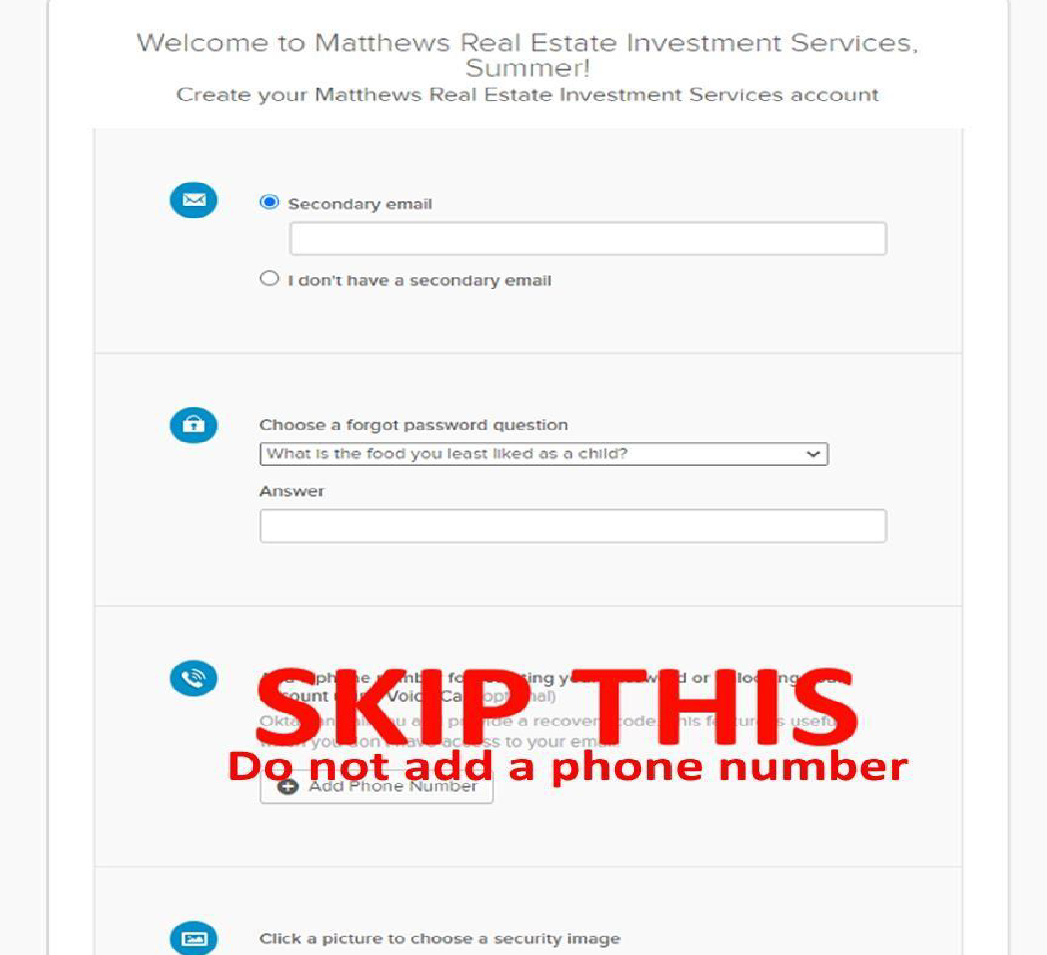
Add your personal email — skip the phone number field
When prompted, enter your personal email address. Skip the phone number / voice call option.
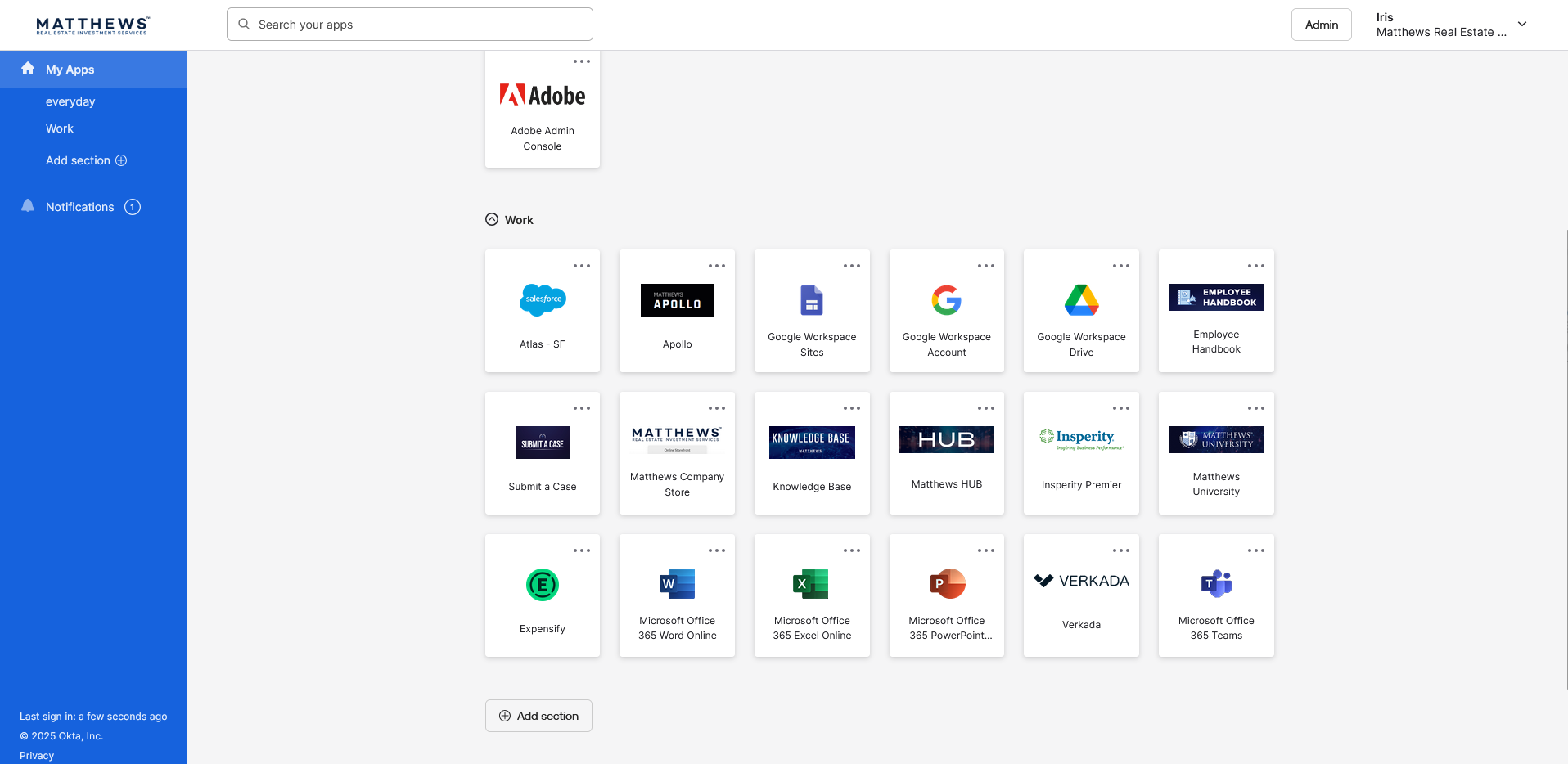
Explore Your Okta Dashboard
View your apps
After signing in you'll see all Matthews-provided apps on your dashboard.
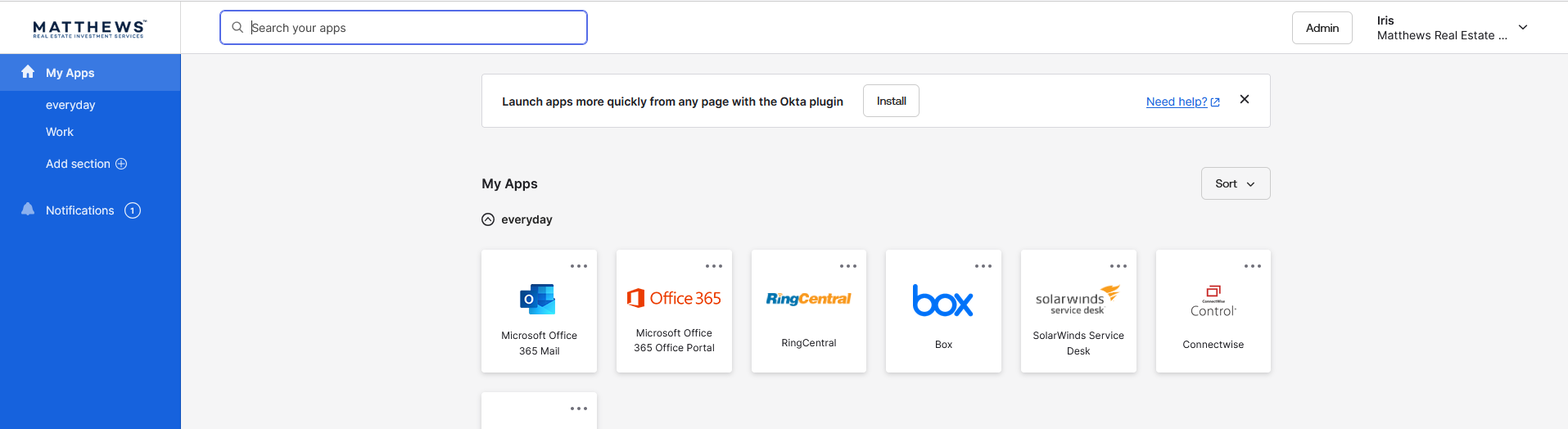
Install the Okta Plugin if prompted
When clicking an app you may be asked to install an Okta browser extension. Click Install, then Add to Chrome.
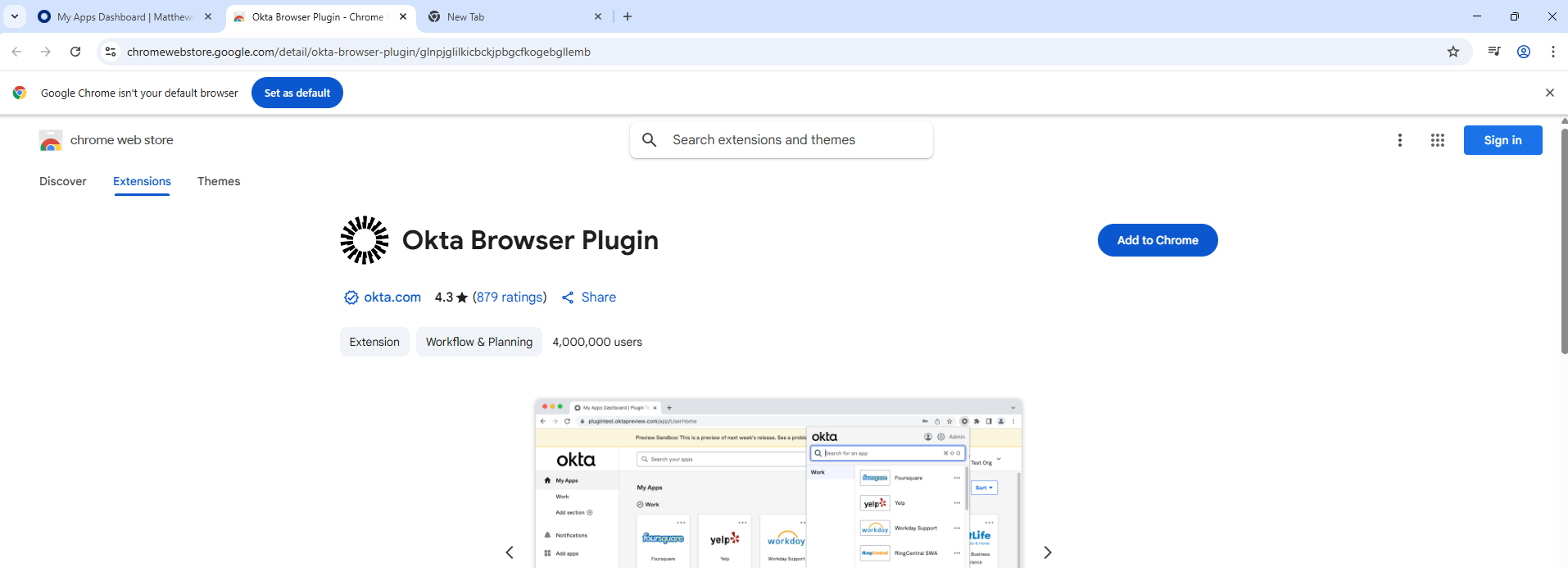
Refresh your Okta page
Click the refresh arrow after installing the extension to ensure all apps load correctly.
Having issues with Okta? Try an Incognito window
Open a Google Chrome Incognito window
An Incognito window eliminates issues caused by cached data, cookies, or browser extensions — a common fix when Okta won't load or sign you in.
Windows or Linux
- Press Ctrl + Shift + N, or
- Click the ⋮ menu (top right) and select New Incognito Window.
Mac
- Press ⌘ + Shift + N, or
- Click File → New Incognito Window.
Sign in to Okta in the new window
Once the Incognito window opens, go to matthews.okta.com and try signing in again.
matthews.okta.comWhere do you fit at Matthews?
The remaining setup depends on your role. Pick yours to continue to your app instructions.